Obtaining a Stringtale API key
In this guide we’ll go through the steps to obtain a Stringtale API key. In the dashboard these appear under API keys. An API key authenticates your requests to the Stringtale API.
An API key can be either read-only or have read and write permissions. Read-only keys are used to pull in changes from Stringtale, for example using the CLI or the GitHub Action, while keys with write permissions are used to store changes in Stringtale. Write keys are typically only used when Stringtale is deployed to a test / preview environment.
Creating an API key
- Go to the Stringtale Dashboard.
- Go to Projects.
- Open the project (or click on Edit project settings) you want to deploy to your test / preview environment.
- Scroll down to
API keys. - Click on
Add API Keyand create a new API key.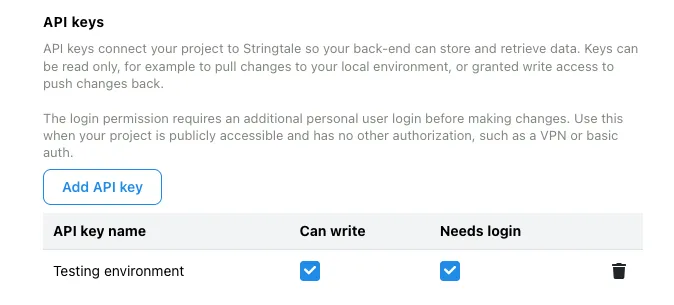
- Copy the API key and store it somewhere safe. You’ll set it as
STRINGTALE_API_KEYin your environment (or as a secret for the CLI / GitHub Action).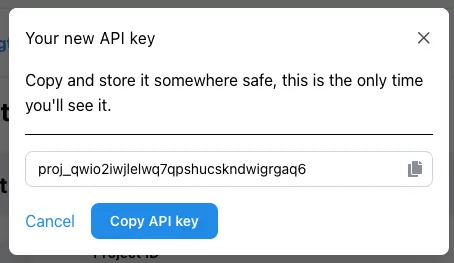
- If required, enable the Can write permission for the newly created API key by checking the checkbox. This allows the key to be used to edit text.
- Optionally check Enable login if you want editors to sign in before they can edit see the browser extension guide.